Device firmware upgrade is a core operation for Rockchip development board developers. For Ieeker Rockchip boards powered by RK3588, RK3576 and other Rockchip SoCs, firmware updates add new features, patch kernel bugs, optimize NPU performance and resolve hardware compatibility issues.
Unlike generic DFU implementations, Rockchip uses its proprietary RockUSB protocol with Maskrom and Loader boot modes. This tutorial is tailored for Ieeker hardware users, covering USB flashing workflows, mode selection, common failures and recovery methods.
Overview of Firmware Upgrade on Ieeker Rockchip Boards
All Ieeker Rockchip development boards support device firmware upgrade. The firmware includes U-Boot bootloader, Linux kernel, root filesystem and device tree. Ieeker releases official prebuilt update.img firmware on its wiki for RK3588 and RK3576 series boards, which developers can flash via USB OTG or SD card.
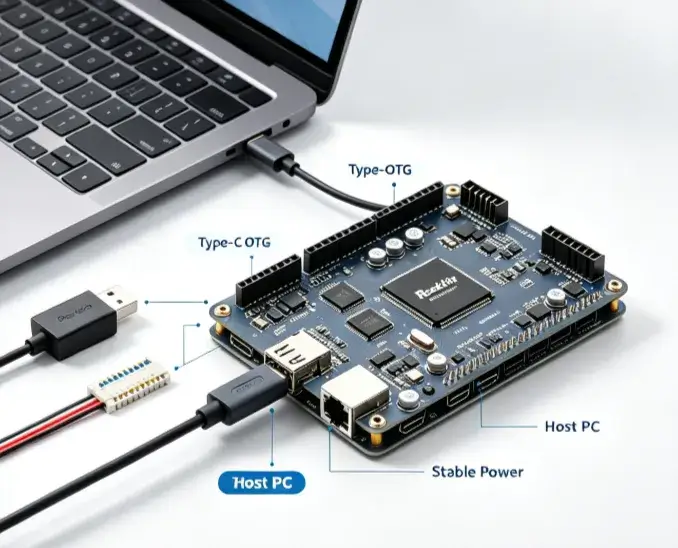
You will commonly use RKDevTool on Windows or rkdeveloptool on Linux to write firmware to onboard eMMC or SPI flash. This workflow is widely used in prototype verification, batch production and field maintenance of embedded projects.
Main Upgrade Modes for Rockchip SoC
Maskrom Mode
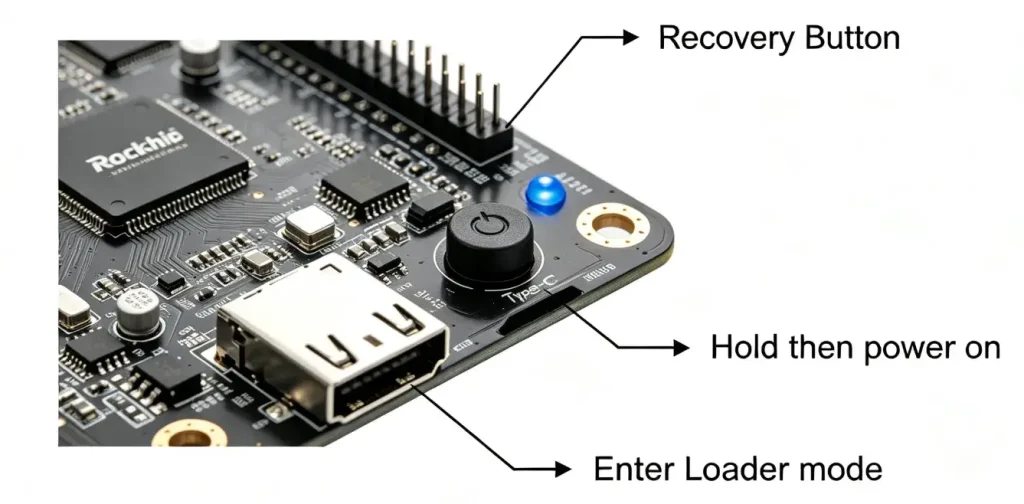
Maskrom is the lowest-level boot mode built inside the Rockchip SoC ROM. It works when the main bootloader is corrupted, making it the final recovery option for bricked Ieeker boards. To enter Maskrom mode, hold the recovery button while powering the board on and connect the Type‑C OTG cable to PC. RKDevTool will detect a Maskrom device.
Loader Mode
Loader mode is the regular upgrade mode for intact boards. The board loads the MiniLoaderAll bin from flash first. Hold the recovery key during power-on to trigger Loader. This is the recommended mode for most daily device firmware upgrade tasks on Ieeker RK3588 and RK3576 boards.
SD Card Recovery Upgrade
SD card upgrade does not require a PC USB connection. Pack the official update.img to a FAT32 SD card, insert it into the Ieeker board card slot, and power up. The board will automatically enter recovery and flash firmware. This fits mass testing when USB access is inconvenient.
Comparison of Rockchip Firmware Upgrade Methods
| Upgrade Mode | Required Interface | Suitable Scenario | Advantage | Risk Level |
|---|---|---|---|---|
| Maskrom (RockUSB) | Type-C OTG USB | Brick recovery, bootloader damage | Can recover dead board | Low if firmware is official |
| Loader (RockUSB) | Type-C OTG USB | Daily firmware update, prototype flashing | Fast, supports partial partition write | Low |
| SD Recovery | MicroSD card slot | Batch testing, offline upgrade | No host PC required | Very low |
Step-by-Step USB Device Firmware Upgrade for Ieeker Rockchip Boards
- Download official firmware from the Ieeker documentation page, confirm it matches your board model (RK3588 or RK3576 variant). Never use firmware compiled for other hardware.
- Install Rockchip Driver Assistant on Windows to load RockUSB driver; for Linux, prepare rkdeveloptool.
- Use a genuine Type‑C data cable. Charging-only cables will cause upgrade failure.
- Power off the Ieeker development board, hold the recovery button, plug in the USB cable and power on. Release the button after RKDevTool detects Maskrom or Loader device.
- Import
update.imginside RKDevTool, select the target storage (eMMC by default). - Click Upgrade, keep power stable throughout flashing. Do not disconnect the cable.
- Wait for the success prompt, power cycle the board, then verify kernel, NPU and system version.
Warning: Power interruption during writing to eMMC is the top cause of bricked Rockchip development boards.
FAQ for Rockchip Board Device Firmware Upgrade
Q1: What is the difference between RockUSB Loader and Maskrom mode on Ieeker boards?
Loader mode uses the working MiniLoader bootloader for fast flashing and is for regular device firmware upgrade. Maskrom runs from the SoC internal ROM, used only when the onboard bootloader is corrupted and the board cannot boot normally.
Q2: RKDevTool cannot detect my Ieeker RK3588 / RK3576 board over USB.
Check three points: use a data Type‑C cable, install RockUSB driver correctly, and confirm you hold the recovery button before powering the board into RockUSB mode. Also try another USB port on your PC.
Q3: Can I use standard DFU-util for Rockchip device firmware upgrade?
No. Rockchip SoC implements proprietary RockUSB instead of standard USB DFU. Use official RKDevTool or open-source rkdeveloptool rather than generic DFU tools.
Q4: Can I roll back firmware on Ieeker Rockchip development boards?
Yes. Download the older stable firmware image from Ieeker wiki and flash it via Loader or Maskrom mode. Note that downgrading may cause compatibility issues with user data.
Q5: Is SD card upgrade available for all Ieeker RK3576 boards?
Most Ieeker Rockchip boards support SD recovery, but some custom carrier board variants disable this function. Check the board schematic on Ieeker docs before preparing an SD upgrade card.
Critical Best Practices to Avoid Bricking Your Rockchip Board
- Always get firmware images from the official Ieeker resource center. Avoid untested third-party builds.
- Prefer Loader mode for normal device firmware upgrade, reserve Maskrom only for emergency recovery.
- Test new firmware on one sample board before flashing the whole batch.
- Keep stable 12V power supply during USB flashing for Ieeker RK3588 high-power boards.
- Record the working stable firmware version for rollback when new releases have NPU or peripheral bugs.